August 17, 2026 at 6:49 AM
Hey everyone — BrwN here.
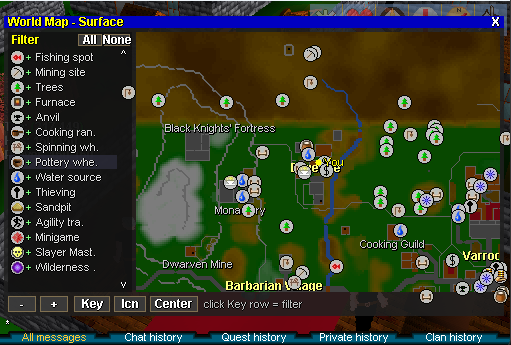
The New ClassicKBD custom client lets you rearrange the whole interface: side panels, a live world map, floating windows, and larger menu text.
Side mode
Open the World Map, then click Side.
- The 3D view stays on screen and shrinks to make room
- The map docks and follows you
- Click the map to walk
- Click Float on the map to go back to the overlay map
Customize the view
With Side mode on, open the Menu panel (Map / Hiscores / Dungeon). The layout diagram is at the bottom.
- Click a side or corner to add or remove a left, right, top, or bottom strip
- Drag a panel by its title bar into a slot, or pull it out to float
- Resize strips and panels
- Move and resize the tab bar
- Hide empty hides unused slots
Freeform
Tick Freeform in that same Menu panel. Every open panel floats so you can place them anywhere. Untick it to snap back to a docked layout.
Save and load a layout
Your arrangement is not kept when you close the client. If you want it again later:
- Save — name it (PC-max, Small, Docked, or whatever you like)
- Load — type that name next time to restore it
- Reload — jump back to the last one you loaded
Menu text size
Settings → General → Menu text size. Click to cycle Normal, Large, and Huge. That applies to the docked menus.
How to update
Fully close the game, reopen the ClassicKBD Launcher, then Play New. Android is 7.17. Web: https://rsckbd.com/play.php (choose New).
Thanks for playing.
— BrwN
The New ClassicKBD custom client lets you rearrange the whole interface: side panels, a live world map, floating windows, and larger menu text.
Side mode
Open the World Map, then click Side.
- The 3D view stays on screen and shrinks to make room
- The map docks and follows you
- Click the map to walk
- Click Float on the map to go back to the overlay map
Customize the view
With Side mode on, open the Menu panel (Map / Hiscores / Dungeon). The layout diagram is at the bottom.
- Click a side or corner to add or remove a left, right, top, or bottom strip
- Drag a panel by its title bar into a slot, or pull it out to float
- Resize strips and panels
- Move and resize the tab bar
- Hide empty hides unused slots
Freeform
Tick Freeform in that same Menu panel. Every open panel floats so you can place them anywhere. Untick it to snap back to a docked layout.
Save and load a layout
Your arrangement is not kept when you close the client. If you want it again later:
- Save — name it (PC-max, Small, Docked, or whatever you like)
- Load — type that name next time to restore it
- Reload — jump back to the last one you loaded
Menu text size
Settings → General → Menu text size. Click to cycle Normal, Large, and Huge. That applies to the docked menus.
How to update
Fully close the game, reopen the ClassicKBD Launcher, then Play New. Android is 7.17. Web: https://rsckbd.com/play.php (choose New).
Thanks for playing.
— BrwN